Digital Photography Workflow
Organize your photo workflow with the 3-2-1 rule, folder structure, RAW cataloging and professional delivery.

Taking good photos is useless if you can't find the file afterward. The foundation of any workflow is the 3-2-1 rule: three copies, on two different media, one off-site. Without that, and without a folder structure and consistent naming, you end up with full drives, lost images and hours of searching.
The rest is built on that foundation: always naming files the same way, ordering the RAW's journey from import to archiving, and exporting with metadata that protects your authorship. It's the difference between piling up thousands of files out of control and running your output in an orderly way.
How do I organize folders and file names?
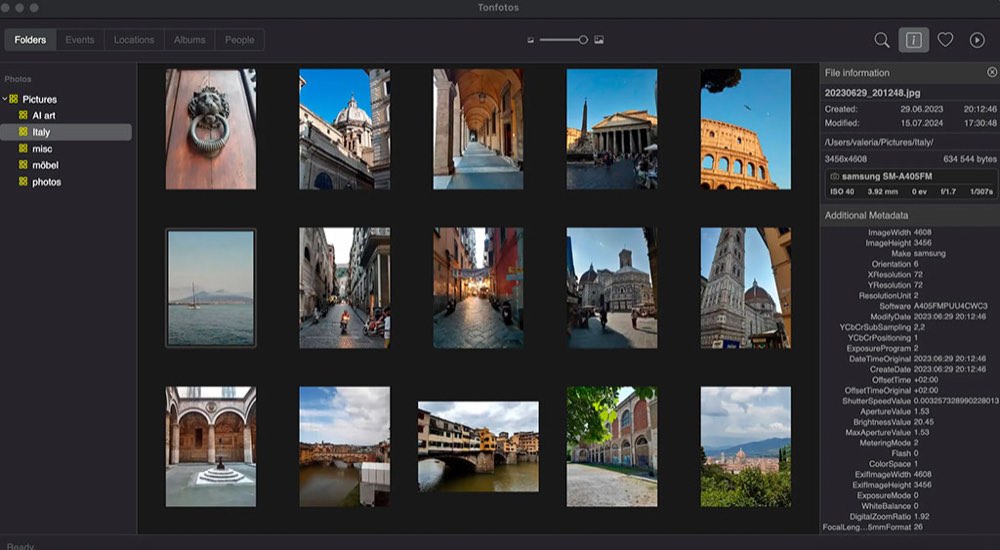
Start with a coherent folder structure. A simple and effective approach is to organize by Year → Month → Event, which makes it easy to locate photos at any time no matter how much time has passed.
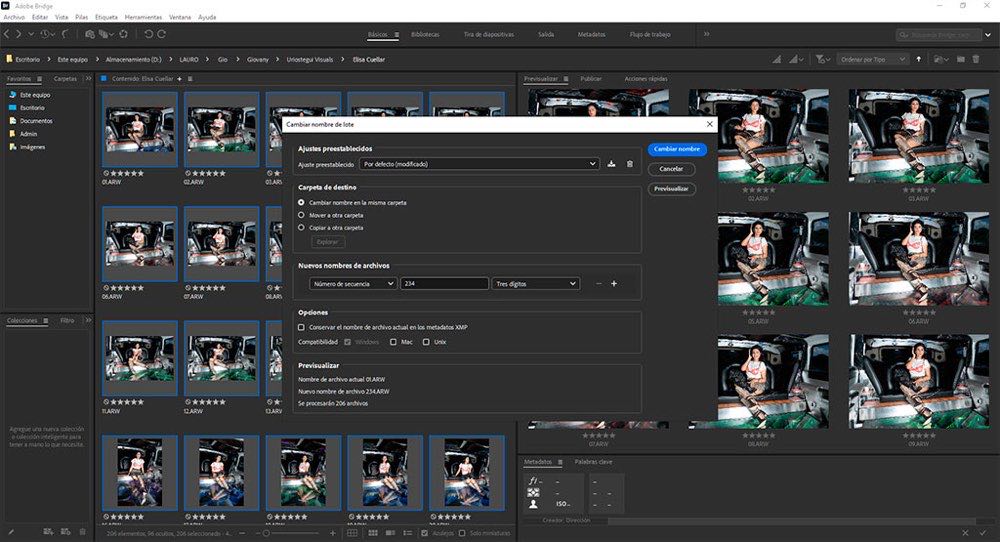
File naming must be clear and consistent. A recommended format is YYYY-MM-DD_DescriptiveEvent_001. For example, 2025-05-10_CarlosWedding_001. This avoids duplicates, keeps chronological order and makes later searches easier. Consistency matters more than the exact format: always use the same pattern, project after project.
Keeping separate folders for the original RAW files, the edited working files and the final exports also reduces confusion and avoids overwriting files by accident.
What is the 3-2-1 rule?
No workflow is safe without a backup plan. The classic rule is 3-2-1: have at least 3 copies of your photos, on 2 different media and 1 copy off-site (cloud or offsite storage).
The ideal is to make an immediate post-session copy, before formatting the cards. Never erase the card until you have at least 2 confirmed copies. A professional practice is to copy first to the main drive, then to an external drive and finally sync with a cloud service.
Services such as Backblaze, Google Drive or Amazon S3 cover the third point of the rule at a reasonable price. What matters is not which service you use but that the sync is automatic and verifiable. The complete setup, with timings and verification, is in the 3-2-1 rule applied to photography.
What path does a RAW follow from the card?
The digital pipeline begins when you import the files. The first phase is culling, or selection, where you discard what's no use to save space and time in editing. Tools such as Lightroom or Capture One make this process easier with keyboard shortcuts to flag, reject and filter in seconds.
Next comes processing or developing in programs such as Lightroom, where you adjust exposure, color and composition. Once developed, you move to export, producing final files in formats such as JPEG or TIFF depending on the destination. Finally, the RAW files are archived along with their catalogs and metadata, making sure they are well classified for future reference.
To get the most out of the RAW file, it helps to understand in depth the differences between RAW and JPEG in 2025 and how each format affects your later editing latitude.
What software and drives do I need?
Lightroom is the most practical tool for organizing, applying keywords and keeping an orderly workflow. Photoshop, on the other hand, is used for one-off edits that require greater precision. Cards should be at least Class 10 (UHS-I or UHS-II), and it's best to format them in the camera after verifying the backups to avoid file system errors.
Medium: Main SSD; Used for: Daily work; Why this one: More speed and lower risk of mechanical failure
Medium: External HDD; Used for: Long-term backup; Why this one: Low cost per capacity
Medium: Cloud; Used for: Remote copy, the "1" of the 3-2-1 rule; Why this one: Survives whatever happens to your desk
Catalogs should be kept organized and backed up along with the photos: without them all the editing information is lost.
How do I export for web and for print?
The export should be adapted to the final use. For web or social media, the ideal is a high-quality JPEG in the sRGB color space so colors display correctly on uncalibrated screens. For print or preservation files, a common choice is uncompressed TIFF with an Adobe RGB profile.
In all cases, add copyright metadata with your name and contact details: it's a professional practice that protects your authorship and makes it easy to be contacted if the images are shared without permission. Programs such as Lightroom let you create export presets that include this metadata automatically.
A good practice when delivering to clients is also to include optional watermarks on the preview proofs, enabling the final unwatermarked export only when payment is confirmed.
How do I find one photo among tens of thousands?
Folders take you to the event; keywords and IPTC take you to the photo. Tag by event, person, place or theme and you can locate a specific image in seconds, even within massive collections. Lightroom makes this process easier with smart collections and quick filters, which multiplies efficiency in large photo archives.
An effective tactic is to create hierarchical keyword sets: for example, "Animal > Mammal > Dog" or "Location > Spain > Barcelona". This allows broad or specific searches without duplicating work when tagging.
Using stars and colors to rate images during culling also speeds up selection: 5 stars for the best candidates, 1 star for those kept but not edited, and rejects to delete in bulk.
Common mistakes to avoid
One of the most serious failures is not making an immediate backup and trusting a single copy. Another frequent mistake is using inconsistent names, which creates confusion in the long run. It's also common to pile up thousands of photos without culling, saturating drives with material that will never be used. Finally, relying on a single medium, whether an internal drive or the cloud, risks your whole archive.
A less obvious but equally damaging mistake is not backing up the Lightroom or Capture One catalog separately: if the catalog gets corrupted without a copy, all the editing information, tags and collections are lost even if the RAW files are intact.
Pro tips for organized photographers
Many professionals follow the personal rule of "I don't erase the card until I have at least 2 copies", which avoids needless scares. Using keywords in Lightroom from the start is another trick that makes quick searches easier months or years later. And when exporting, always doing so with embedded copyright metadata is a simple and effective way to protect your work in any context.
Complement your workflow with a deep understanding of the process of photo editing from RAW to the final look to make sure each stage adds value without duplicating work.
Frequently asked questions
Why shouldn't I work only from the cloud? The cloud is excellent as an offsite copy, but relying only on it is risky because of access speed, possible sync failures and the fact that some services may change their policies or prices. You always need at least one local copy with fast access.
How long should I keep my RAW files? As long as space allows. The RAW is the digital negative and can be re-edited with new techniques, styles or AI tools in the future. Deleting RAW files is like destroying film negatives: an irreversible decision.
How do I know if my workflow is efficient? If you can find, back up and deliver photos without stress or lost time, your workflow is working. If you spend more time searching than editing, or if you have doubts about whether a photo is backed up, you need to organize it from the ground up.
Is it worth using specialized software, or are operating system folders enough? For small volumes, operating system folders may be enough. But from a few thousand photos on, a manager such as Lightroom greatly speeds up culling, searching and exporting, and the time saved justifies its cost.
The first thing you'll do when you get back from your next session
Copy the card to two places before formatting it. That single habit prevents most of the file losses that actually happen. After that come consistent names, keywords from day one and backing up the catalog, which almost nobody does and which is what wipes out months of editing.
If you want the complete system by stages, the guide to file management and workflow walks through it in order.
The 44 cards from Enfogram come with the settings you decide before the photo reaches the drive printed on them, so you don't depend on memory while shooting.